How I Cleaned Up My Android TV with Claude Code (No Root, No Coding)
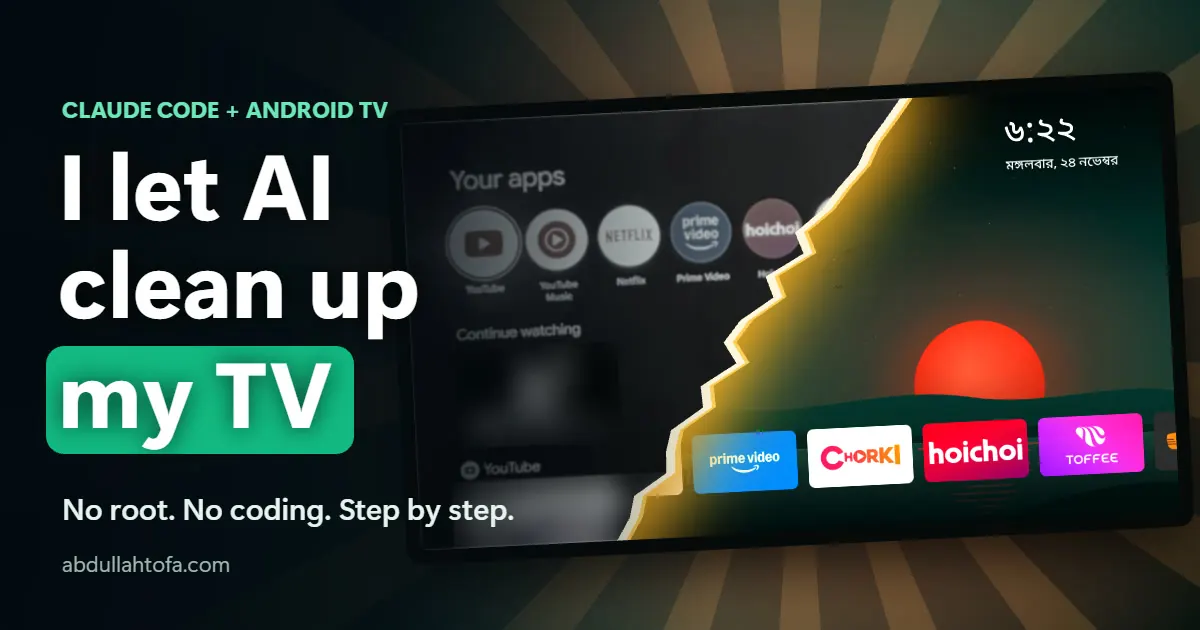
My Android TV was not broken. It was just annoying. Every time I turned it on, I saw posters I did not ask for, apps I never opened, and a home screen that took its time. So I tried something new. I gave the job to an AI and decided to clean up my Android TV with Claude Code, using nothing but plain sentences.
I am not a programmer. I did not root the TV, and I did not delete a single system app for good. In the end, 14 useless apps were hidden, the slow animations were gone, and my TV had a home screen of its own that greets me in Bangla and changes its picture with the time of day.
This is not only my story. It is a full beginner guide. You will get the exact prompts to copy, the commands behind them, a list of what is safe to hide, the mistakes I made, and a way to undo everything.
The short version
- What it is: Claude Code runs on your computer and talks to your TV through ADB, Google's free tool for Android devices.
- What you do: write in plain words, read what it plans, say yes or no, and press a few buttons on the remote.
- What you get: fewer apps, instant screen changes, and a cleaner home screen.
- What you do not get: a new TV. Cheap hardware stays cheap hardware.
- Risk: low if you follow the safety rules below, because every step here can be undone.
- Time: keep one free evening. Do not rush.
My results, with honest numbers
| What I measured | Before | After |
|---|---|---|
| Apps on the TV, including system parts | 147 | 134 (14 hidden, my own home screen added) |
| Memory used by the home screen | about 120 MB | about 53 MB |
| Free memory | about 625 MB | about 690 MB |
| Animation speed setting | 1x | 0 (off) |
| Free storage | 6.8 GB | 6.8 GB (no change) |
The memory numbers were taken at different moments, so treat them as a fair guide, not a lab test. And notice the last line. Hiding apps does not free storage, because the hidden files stay on the TV so you can bring them back. Many guides skip that part.
The change I feel every day is the animations. Screens now open at once instead of sliding in.
What is Claude Code, and why can it control a TV?
Claude Code is an AI assistant from Anthropic that can do things on your computer, not only chat. It can run commands, read the answer, notice a problem, and try a better way. You talk to it in normal language.
Your TV is an Android device. Google has a free tool called ADB (Android Debug Bridge), which lets a computer send commands to an Android device. Developers use it every day. Claude Code knows how to use it, so you do not have to learn it.
Think of it like this: ADB is the phone line to your TV. Claude Code is the friend who speaks the language. You are the boss who says yes or no.
Will this work on your TV?
It depends on the system inside the TV, not on the brand name.
| TV system | Does this guide work? |
|---|---|
| Google TV or Android TV (many Singer, TCL, Sony, Hisense, Xiaomi and Skyworth models) | Yes. Menu names may differ a little. |
| Android TV boxes and Google TV sticks | Yes, usually. |
| Amazon Fire TV | Partly, on older models based on Android, where the home screen is much harder to change. No on newer sticks with Vega OS, which is not Android. |
| Samsung (Tizen), LG (webOS), Roku | No. These are not Android. |
How to check, on the TV with the remote: open Settings > System > About. If you see "Android TV OS" or "Google TV", you are ready.
What you need before you start
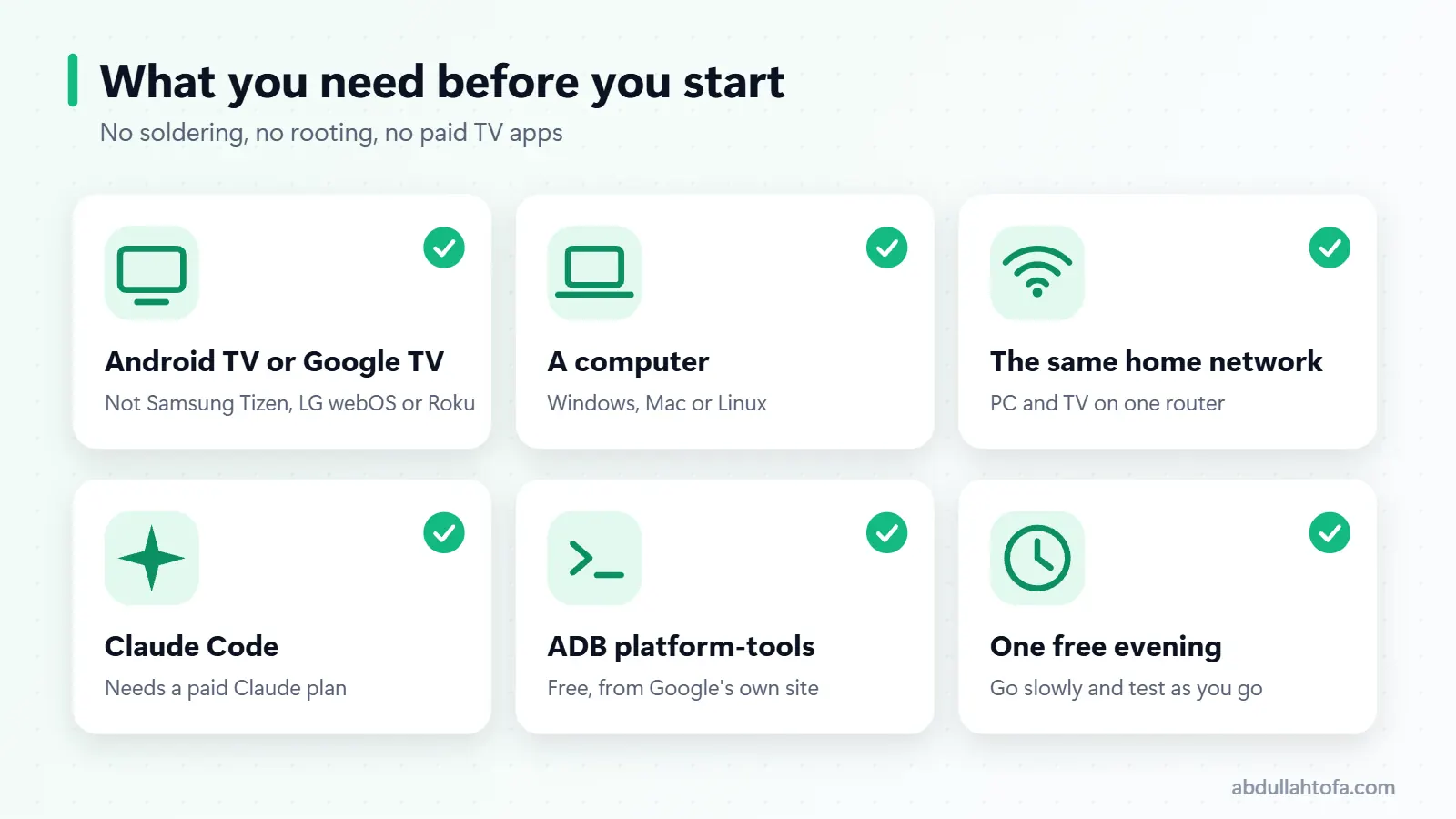
- An Android TV or Google TV. Mine is a Singer 50-inch with Android TV 14.
- A computer. Windows, Mac or Linux. I used Windows 11.
- The same home network. The TV and the computer must be on the same router.
- Claude Code. It needs a paid plan. When I wrote this in November 2026, Claude Pro was $20 a month, or $17 a month if you pay for a year. The free plan does not include Claude Code.
- ADB platform-tools. Free. Get it only from Google's official page, never from a random download site.
7 safety rules before you touch anything
Most horror stories start with someone pasting a long list of commands from the internet. Please do not do that. These are the rules I recommend. Most of them are what I gave Claude on day one, and they saved me more than once.
- Never root the TV. You do not need it for anything in this guide.
- Look first, change later. Ask for a full list of apps before you hide even one.
- Hide, do not destroy. Use a method that can be undone.
- Write it down first. Every app goes into a text file before it is hidden.
- Small groups only. Hide 3 to 5 apps, then test the TV with the remote.
- Keep the approval prompts on. Read what Claude Code wants to run before you allow it. Do not switch the permission checks off to save time.
- If something breaks, stop. Undo the last step first. Investigate after.
Step 1: Install Claude Code on your computer
The easy way is the Claude desktop app. It has Claude Code inside, so you do not need to learn the terminal. You can find it on the official setup page.
If you prefer the terminal, open PowerShell on Windows, paste this line and press Enter:
irm https://claude.ai/install.ps1 | iexOn Mac or Linux, open Terminal and paste this:
curl -fsSL https://claude.ai/install.sh | bashThen open a new window, type claude, and sign in with your browser.
Next, make one folder for this project, for example tv-cleanup, and open Claude Code in that folder. Everything will be saved there: the lists, the notes and the undo files.
Step 2: Turn on Developer options on the TV
Android hides its advanced settings. You unlock them with a small trick, on the TV with the remote:
- Open Settings > System > About.
- Go down to Android TV OS build (on some TVs it is called Build or Build number).
- Press OK seven times. A message says you are now a developer.
- Go back to Settings > System > Developer options.
- Turn on USB debugging.
On some TVs, About and Developer options sit in a slightly different menu. Google's own page lists Settings > Device > About > Build, for example.
Step 3: Connect your computer to the TV
First, find the TV's address on the TV: Settings > Network & Internet > your connection. It looks like 192.168.1.50. Yours will be different.
Now you do not have to type ADB commands yourself. In Claude Code, paste this prompt:
I do not know coding. Explain everything in short, plain sentences.
When I must do something, tell me exactly where: on the TV or on this computer.

My Android TV's address is 192.168.1.50 (change this to yours).
Download adb only from Google's official platform-tools page.
Put it in this folder, ask me before downloading,
then connect to my TV. Do not change anything on the TV.
Behind the scenes, it runs two commands like these:
adb connect 192.168.1.50:5555
adb devices
Now look at the TV. A popup asks "Allow USB debugging?" Tick Always allow from this computer and press Allow.
If it does not connect
- "Connection refused": some TVs do not open port 5555. Look for Wireless debugging in Developer options (Google says TVs need Android 13 or newer for this). Choose Pair using pairing code and tell Claude the address, port and code. It will use
adb pair. - "Connection timed out": the TV is off, its address changed, or it is on a different network. A TV on a second Wi-Fi router is often invisible to a PC on the first one.
- "Unauthorized": the popup is waiting on the TV. Press Allow.
- "Offline": restart the TV and connect again.
Step 4: Ask for a full list, not for action
This is the most important prompt in the whole guide. It makes the AI look and report before it does anything.
List every app on my TV. Do not change anything.
Sort them into four groups and save the list as app-plan.txt:

A. Safe to hide
B. Streaming apps: my choice
C. Not sure: tell me exactly what could stop working
D. Must keep

For each app give the name, the package name,
and one plain sentence about what it does.
Also save the current settings and memory use,
so we can compare later. Then wait for my OK.
On my TV it found 147 apps and parts. Only 10 of them were clearly safe to hide. 117 were "must keep". I hid 14 in the end: those 10, and four more that I chose after asking about each one. That is why random "remove these 80 apps" lists from the internet are dangerous.
Step 5: Know what is safe to hide, and what is not
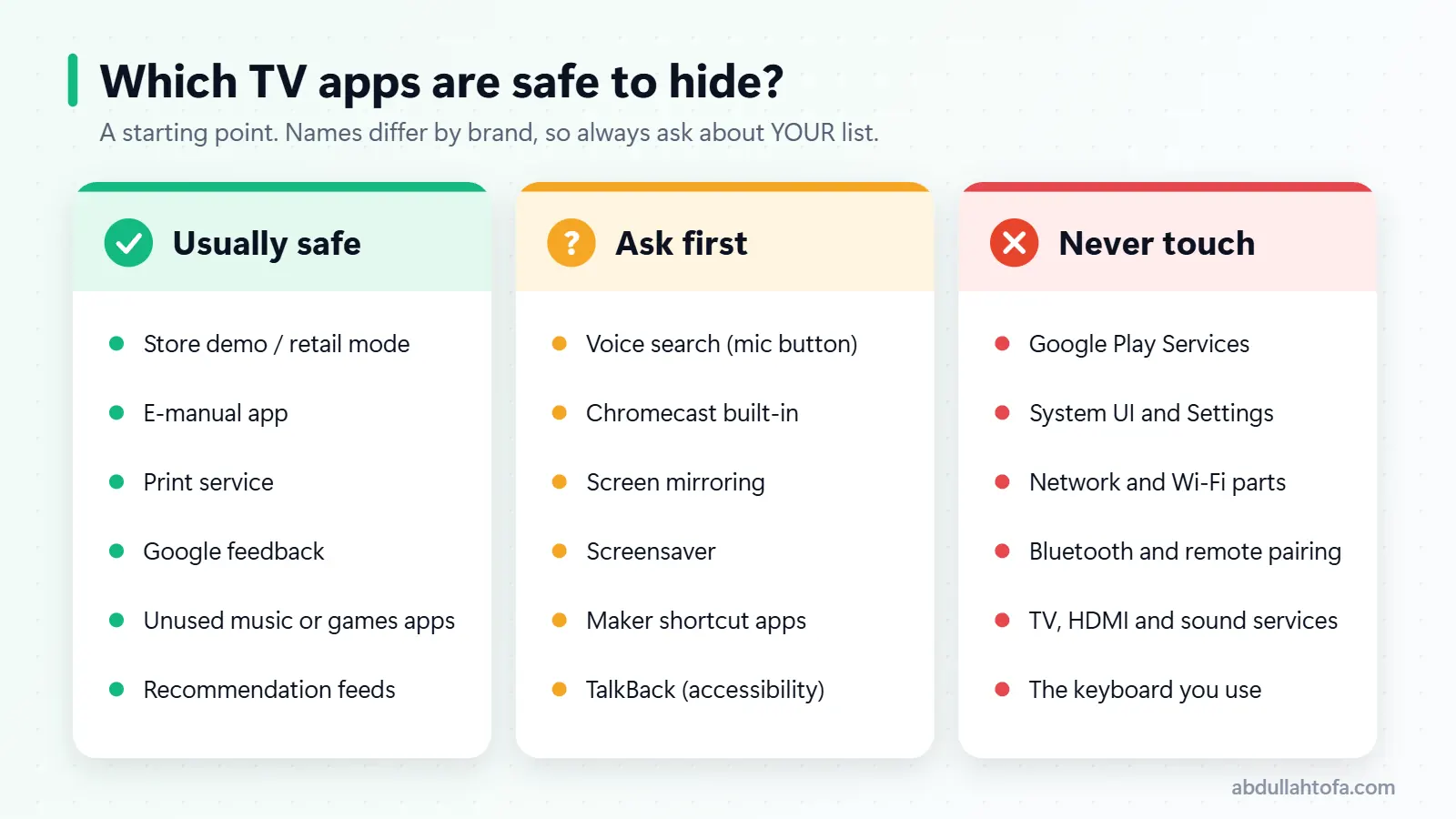
Usually safe to hide
Store demo apps, the electronic manual, print service, the Google feedback form, music or game apps you never open, and the maker's recommendation feed. These were the kind of apps I hid.
Ask first
Voice search, Chromecast, screen mirroring, the screensaver and the maker's own shortcut apps. They use memory, but a button or a feature may depend on them. I kept voice search and Chromecast, because I use them. TalkBack is a screen reader for blind users, so keep it if anyone at home needs it. I hid TalkBack and LeanKey, an extra on-screen keyboard, because nobody at home uses them.
Never touch
Google Play Services, System UI, Settings, anything about network or Bluetooth, the HDMI and sound services, and the keyboard you use. If you hide the wrong one, you may lose your remote, your Wi-Fi or your picture.
What about the ads?
Let me be honest. My TV did not have many ads, and this method is not an ad blocker. A simple home screen has fewer posters and suggestions, because it only shows what you put there. Ads inside YouTube and other apps stay.
Step 6: Hide the apps in small groups
When you agree with the list, use this prompt:
Hide only these apps: (paste the names you approved).
Rules:
- Use only: adb shell pm uninstall -k --user 0 PACKAGE
- Write each app in removed-apps.txt BEFORE hiding it.
- Work in groups of 4. After each group, stop and tell me
  what to test on the TV with the remote.
- Make a file called restore-all.bat that brings everything back.
On Mac or Linux, ask for restore-all.sh instead.
Here is what that command does. It removes the app for your user, but the original copy of a pre-installed app stays in the TV's system. That is why it can come back with one line:
adb shell cmd package install-existing PACKAGEImportant: this is for apps that came with the TV. For apps you installed yourself, use the normal Uninstall button on the TV, or you will have to download them again.
After each group, test these on the TV: Home button, Back button, volume, YouTube, HDMI or Input button, the mic button, and one restart.
Step 7: Turn off animations (the change you feel most)
Android slides and fades between screens. On a slow TV, you sit and wait for that. You can switch it off on the TV: Settings > System > Developer options > Drawing. Set Window animation scale, Transition animation scale and Animator duration scale to off.
Or ask Claude Code to do it. These are the three commands:
adb shell settings put global window_animation_scale 0
adb shell settings put global transition_animation_scale 0
adb shell settings put global animator_duration_scale 0
To undo it, use 1 instead of 0.
A trap I found: after a power cut, my TV put all three back to 1 by itself. If yours does the same, tell Claude. My new home screen now sets them to 0 again whenever it opens.
Step 8: Give your TV a new home screen (optional)
You have two choices.
Choice A: Install a ready-made launcher
Open the Play Store on the TV and search for a launcher. Projectivy Launcher is a popular one. It is the simple way. I tried it, but the custom pictures I wanted needed the Premium version, so I removed it.
Choice B: Build your own, like I did
I described my dream home screen in plain words. Claude Code wrote a small Android app and built it on my PC with Android Studio's free tools. It shows a greeting, a clock and one row with my apps. The picture follows the day: sunrise, noon, afternoon, sunset and night. It has no internet access at all.
Here is a prompt you can change to your taste:
Build a very light home screen app for my Android TV.
- One row of apps in this order: (your list)
- A greeting and a clock in (your language)
- Background picture changes: morning, noon, afternoon, evening, night
- No internet permission, no tracking, no ads
- Install it next to the old home screen first.
  Do NOT switch the old home screen off yet.
Show me a screenshot and wait for my OK.
The golden rule of home screens: do not switch off the old one until the new one has survived a full restart, and you have an undo file ready. On Google TV there is one more catch. If you disable the main home screen, a recovery screen can take over the Home button. Claude found that and handled both parts together.
What went wrong (and how I fixed it)
Not everything was smooth. This part may save you an evening.
Problem 1: The Input button stopped working
I hid an app called Art Time. It looked useless. It turned out to run the Input button on my remote. One command brought it back. Lesson: the maker's apps can have hidden jobs.
Problem 2: The Settings button stopped working
The gear button on my remote used to open a panel that belonged to the old Google home screen. When that home screen was switched off, the button had nothing to open. I described the problem in one sentence. Claude checked which app receives that key, explained the cause, and added a small helper that opens Settings.
You can use the same prompt for any problem:
STOP. Do not try more fixes yet.
This is what I see on the TV: (describe it in your own words)
This worked before: (what worked)
Tell me in plain words what probably caused it,
and how to undo the last step.
Problem 3: "Why is it not super fast?"
My TV has a small 4-core chip and about 1.9 GB of memory. No cleanup can change that. The TV is calmer and cleaner, but it did not become a rocket. Anyone who promises "10x faster" is selling you a thumbnail.
How to undo everything
The adb commands and the restore file need USB debugging. If you turned it off, turn it on again first.
| What you changed | How to undo it |
|---|---|
| One hidden app | adb shell cmd package install-existing PACKAGE |
| All hidden apps | Double-click the restore-all.bat file Claude made for you |
| Animations | Set the three animation settings back to 1 |
| Google home screen | adb shell pm enable com.google.android.apps.tv.launcherx, then choose it as Home again. If its recovery part was disabled too, enable that as well. |
| Everything, as a last resort | Factory reset in the TV settings. You will have to sign in and set up your apps again. |
Keep the project folder, and keep a copy of it somewhere safe. It is your undo button.
Finish safely: lock the door behind you
- Keep USB debugging on for a few days, in case something needs a fix.
- Then turn it off: Settings > System > Developer options > USB debugging. An open debugging port is a door to your TV for anyone on your network.
- Choose Revoke USB debugging authorizations if your TV shows it and you will not need the connection again.
- After a big TV update, check your list again. Updates can bring hidden apps back.
The complete master prompt (copy and paste)
If you only copy one thing from this article, copy this. Change the parts in brackets.
Help me clean up my Android TV. I do not know coding.
Explain everything in short, plain sentences.
When I must do something, say exactly where:
on the TV with the remote, or on this computer.

TV: [brand and model]. Address: [192.168.x.x].
Apps I use: [YouTube, Netflix, ...].
Features I need: [remote, HDMI, Wi-Fi, Bluetooth, voice search, casting].

Rules:
1. Never root the TV. Never change network or router settings.
2. Get adb only from Google's official platform-tools page.
3. First save a full list of apps, settings and memory use.
   Sort the apps: safe, my choice, not sure, must keep. Then wait.
4. Hide only apps I approve, only with
   adb shell pm uninstall -k --user 0 PACKAGE
   Write each one in removed-apps.txt first.
5. Groups of 4. Stop after each group so I can test the TV.
6. Make restore-all.bat before the first app is hidden.
7. Never switch off my current home screen until a new one
   works after a restart and I say yes.
8. If anything goes wrong: stop, explain in plain words, undo.
9. At the end, write README.txt with every change and its undo,
   and a before and after table with honest numbers.
The same idea works for your videos too
Here is the funny part. After the TV was done, I used the same tool to make the video about it. I recorded my voice on my phone. Claude Code cut the mistakes, drew every animation with code, made original music, and added the subtitles. Then we turned the same video into a 9:16 reel. Even the GIFs on this page were made that way. I did not open a traditional video editor.
If you want to see how far this can go, read how I made a 10-minute animated YouTube video with Claude AI, or look at my AI portfolio.
No time to do it yourself? Hire my time
You do not need to learn prompts, scripts and rendering. You can hire me as your AI video editor and keep your evening. I have been freelancing since 2015, and you approve everything before it is final.
- AI animated videos: explainers, stories, tutorials and case studies from your voice recording
- Reels, Shorts and 9:16 versions of your long videos
- Clean audio: noise, mistakes and long pauses removed
- Captions and subtitles in English and Bangla
- Thumbnails, scripts, titles and descriptions
- AI websites and automation, if your business needs more than video
You send the raw material. I send a plan and a price. You approve, and I deliver.
Send me a message, or hire me on Upwork or Freelancer. My packages and prices are in this article.
Frequently asked questions
Is it safe to clean up an Android TV with Claude Code?
It is low risk if you hide apps instead of rooting, work in small groups, read each step before you approve it, and keep an undo file. It is not risk free. A wrong app can break a remote button, as it did for me.
Do I need to know coding?
No. You write normal sentences. You only need patience, and you need to test the TV after each step.
Do I have to root my TV?
No. Nothing in this guide needs root.
Is Claude Code free?
No. The free Claude plan does not include it. You need a paid plan such as Pro. If you only want this one job, you can subscribe for one month and cancel. To see why AI plans are priced this way, read The AI Pricing Crisis.
Will this make my TV faster?
It will feel quicker, mostly because the animations are off and the home screen is lighter. The processor and memory stay the same.
Will it remove all ads?
No. It can clean the home screen, but ads inside apps such as YouTube stay.
Will I lose my warranty?
Nothing is rooted here, and the changes can be undone. Warranty rules are different for each maker, so check yours before you start.
Can I do this without Claude Code?
Yes. Every command is in this article, and you can type them yourself in PowerShell or Terminal. The AI makes it easier, because it reads your own app list and explains each risk.
What happens after a factory reset?
The TV goes back to how the maker shipped it. The hidden apps return, and your own apps and settings are gone.
Final thoughts
The best part was not the 14 apps. It was the moment I turned on the TV at night, and it greeted me in my own language, with a moon in the corner and only the apps I actually use. A cheap TV suddenly felt like mine.
The idea came to me from a video by Khalid Farhan. Next, I want to give a new life to old phones lying around at home. What should I build with an old phone and AI? Tell me in the comments under the YouTube video, or send me a message. Before you give an old phone a new job, save its SMS messages first.
And if you would rather spend your time on your business than on editing, you know where to find me.
Watch the full video
The whole story in two and a half minutes (in Bangla):
Can't see the video? Watch it on YouTube.