I Stopped Paying Namecheap ~$20 a Year. Cloudflare Renews My .com for $10.46
TL;DR: Namecheap sold me cheap domains for the first year. After that, every .com renewed at $18.68 a year. Cloudflare Registrar charges the wholesale price with zero markup. I paid $10.46 to move a .com over, that payment added one more year to the domain, and future renewals stay at the same at-cost price. The whole transfer takes about 30 minutes of clicking, then a few days of waiting. Every screenshot from my own transfer is below.
The domain renewal trap nobody warns you about
Most of us buy our first domain the same way. We search for a name, see a big promo price, and click buy. Namecheap is very good at this. The first-year price looks so friendly that you never think about year two.
Then the renewal email arrives.
I manage several domains, some for my own projects and some for clients. One night I opened my Namecheap cart to renew two ordinary .com domains. The regular renewal price was $18.48 plus a $0.20 ICANN fee per domain. That is close to $20 a year for one domain. Even with a discount applied, the cart still came to $29.96.
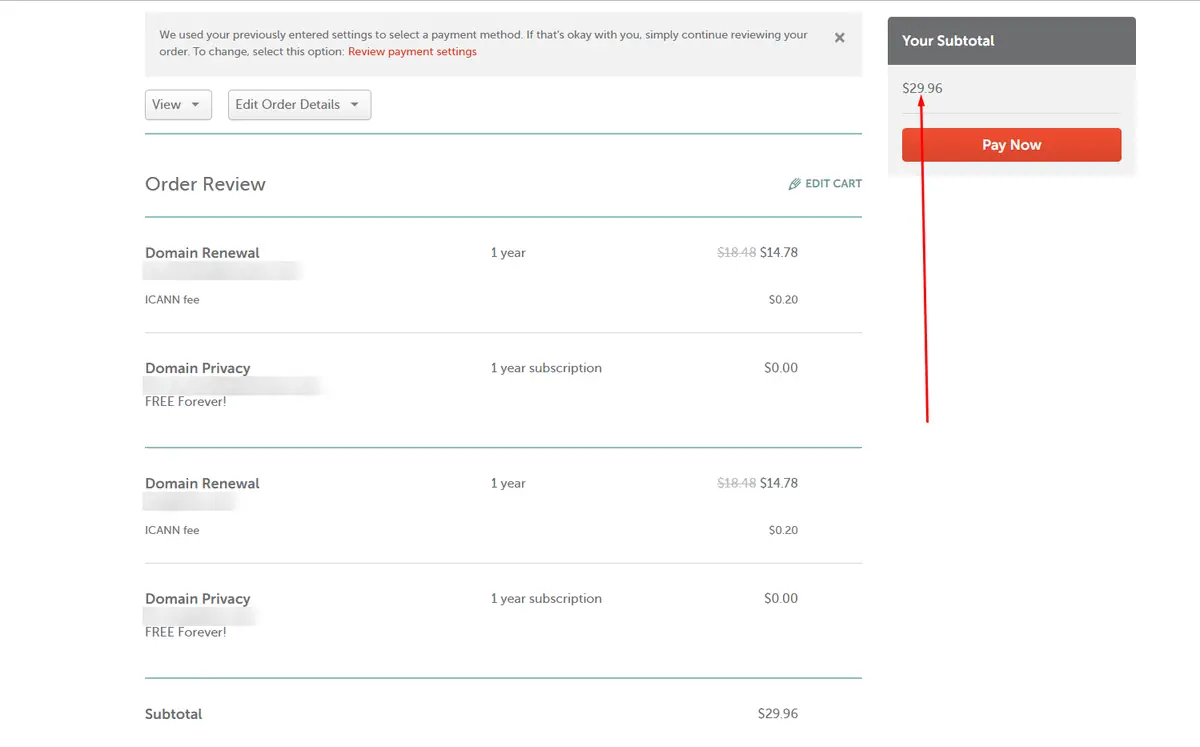
That price is not a mistake. It is the business model: low promo price to get you in, much higher renewal price to keep you paying. Moving a domain feels like a technical chore, so most people stay and pay that renewal price for years.
Before clicking Pay Now, I checked what Cloudflare would charge. The answer was $10.46 for the same .com, and that price included one extra year. Next year's renewal costs the same. So I moved my domains, and this guide shows exactly how I did it.
A genuine thank you to Cloudflare
This is not a sponsored post. I want to thank Cloudflare publicly, because it gives small website owners like me more free infrastructure than any other company I know.
Cloudflare Registrar sells domains at cost. You pay what the registry (for example Verisign for .com) charges, plus the ICANN fee, and Cloudflare adds no markup. There is no big first-year discount, but there is no renewal jump either. Year one, year five and year ten cost about the same.
And the domain is only the start. The Cloudflare Free plan, which costs $0, includes:
- Fast, free DNS, one of the quickest authoritative DNS networks in the world
- Free Universal SSL, so you get HTTPS without buying a certificate
- Global CDN and caching, which makes your site load faster everywhere
- Unmetered DDoS protection, the same network that protects huge websites
- Free WHOIS privacy, with your personal details redacted by default
- Email Routing, free forwarding from
[email protected]to your Gmail - Pages for unlimited static sites and Workers with 100,000 free requests a day
- R2 storage (10 GB free with zero egress fees) and D1 database (5 GB free)
- Turnstile, a free CAPTCHA alternative, plus Zero Trust tools for small teams
The security part matters more than most people think. If you have ever seen your website redirecting to a spammy website, you know how much damage one weak spot can do.
Other companies charge monthly fees for many of these. So, thank you, Cloudflare, for making the internet cheaper and safer for everyone, including people building their first website.
Namecheap vs Cloudflare: real price comparison
These numbers come from my own Namecheap cart and my own Cloudflare invoice, not from a marketing page.
| Namecheap | Cloudflare Registrar | |
|---|---|---|
| .com first year | Cheap promo price | At cost (no promos) |
| .com renewal (per year) | $18.48 + $0.20 ICANN = $18.68 | $10.46 (all fees included) |
| Markup on renewal | Yes | None, wholesale price |
| WHOIS privacy | Free | Free (redacted by default) |
| DNS, SSL, CDN, DDoS protection | Basic DNS free; PremiumDNS and SSL cost extra | Included free |
| Transfer cost | n/a | One year of renewal ($10.46), which is added to your expiry date |
That is $8.22 saved per .com domain every year, or about 44%. It sounds small, but it adds up fast:
| Domains you own | Saving after 5 years | Saving after 10 years |
|---|---|---|
| 1 domain | $41.10 | $82.20 |
| 5 domains | $205.50 | $411.00 |
| 10 domains | $411.00 | $822.00 |
Note: Prices change over time and differ by extension (TLD). For example, a .online domain was $27.70 at Cloudflare in my account, because that is the wholesale price for .online. Always compare the renewal price for your exact extension.
Before you start: Namecheap to Cloudflare transfer checklist
Check these five things first and the transfer will go smoothly:
- The domain is older than 60 days. ICANN blocks transfers for 60 days after a new registration, a previous transfer, or a change of registrant contact.
- The domain is not expired. Renew it first if it is already past its expiry date.
- You can read the registrant email. Namecheap sends the auth code there.
- DNSSEC is turned off at Namecheap (Domain List → Manage → Advanced DNS). You can turn it on again later in Cloudflare.
- Cloudflare supports your extension.
.com,.net,.organd many others are supported, but not every country-code TLD is. Check Cloudflare's list of supported domain extensions.
Using Namecheap email forwarding or Private Email? When you switch nameservers to Cloudflare, Namecheap's free email forwarding stops working. Before you switch, set up Cloudflare Email Routing (free), or make sure your mail provider's MX records are in Cloudflare DNS.
Part 1: Add your domain to Cloudflare
Cloudflare can only accept a transfer for a domain that is already active in your Cloudflare account. So the first job is to connect the domain to Cloudflare's free DNS.
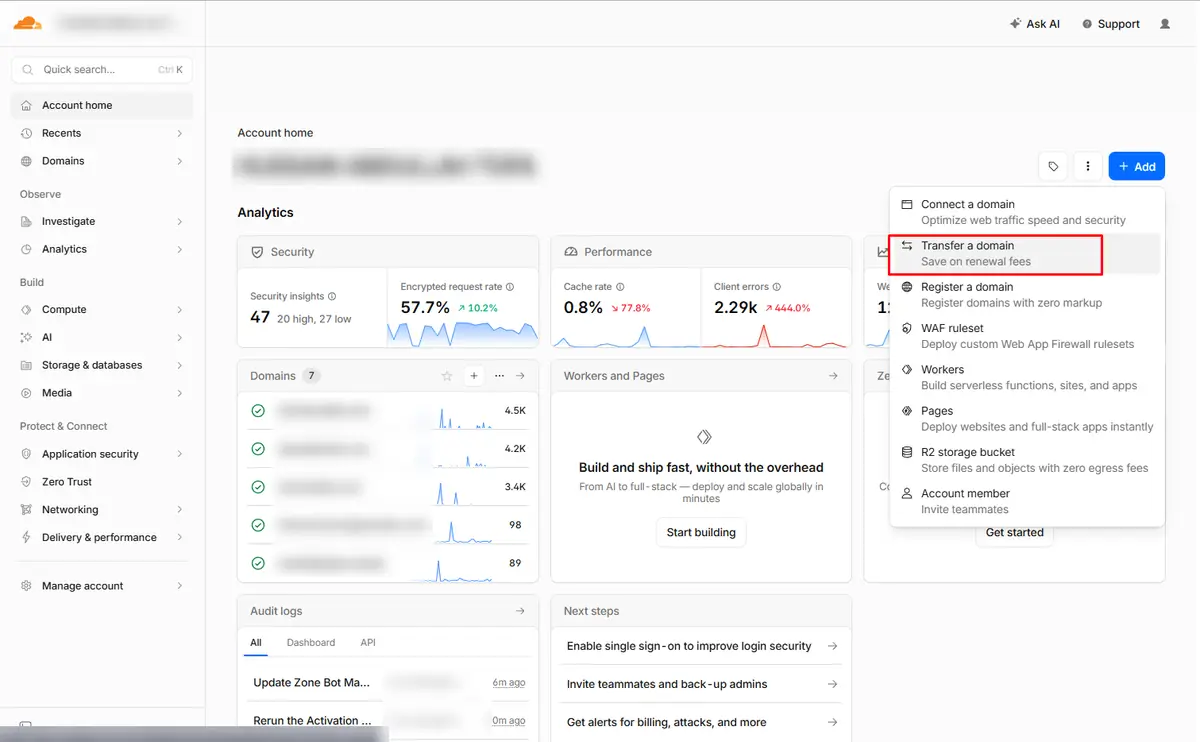
STEP 1Click "Add" → "Transfer a domain"
Create a free Cloudflare account, or log in to your existing one. On Account home, click the blue + Add button in the top right corner, then choose Transfer a domain ("Save on renewal fees").
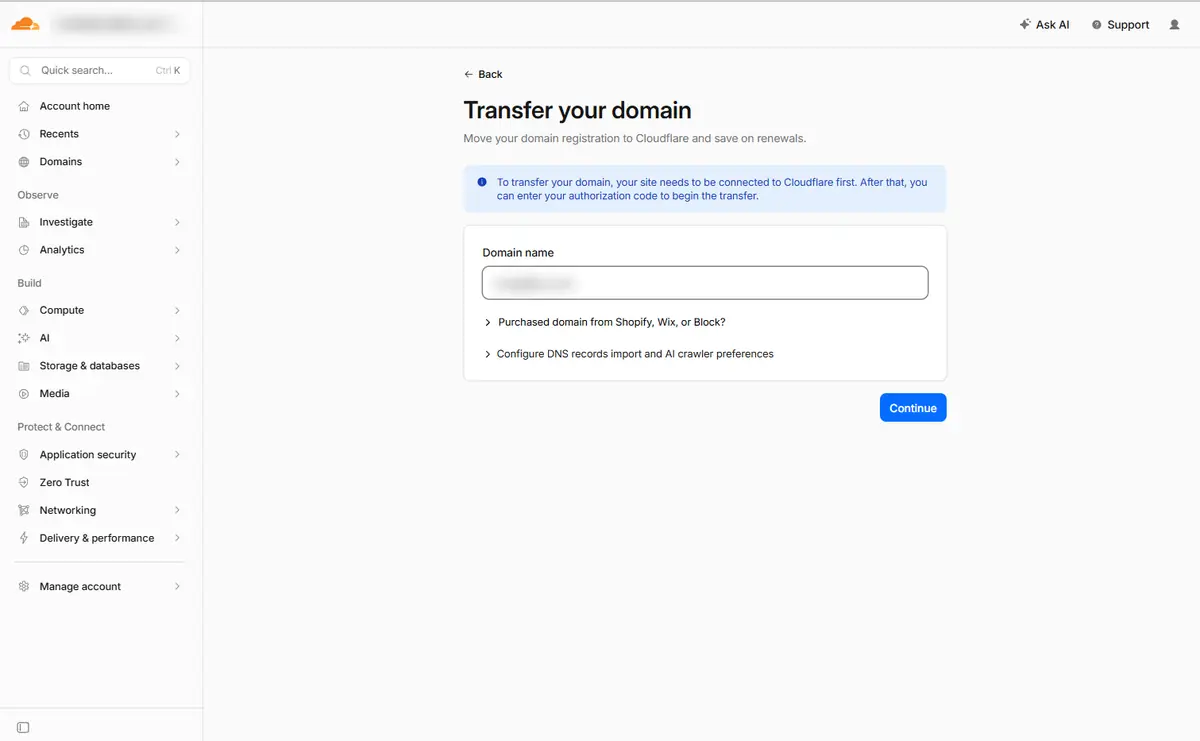
STEP 2Enter your domain name
Type the domain you want to move (for example yourdomain.com) and click Continue. As the blue notice explains, Cloudflare first connects the site, and you enter the authorization code after that.
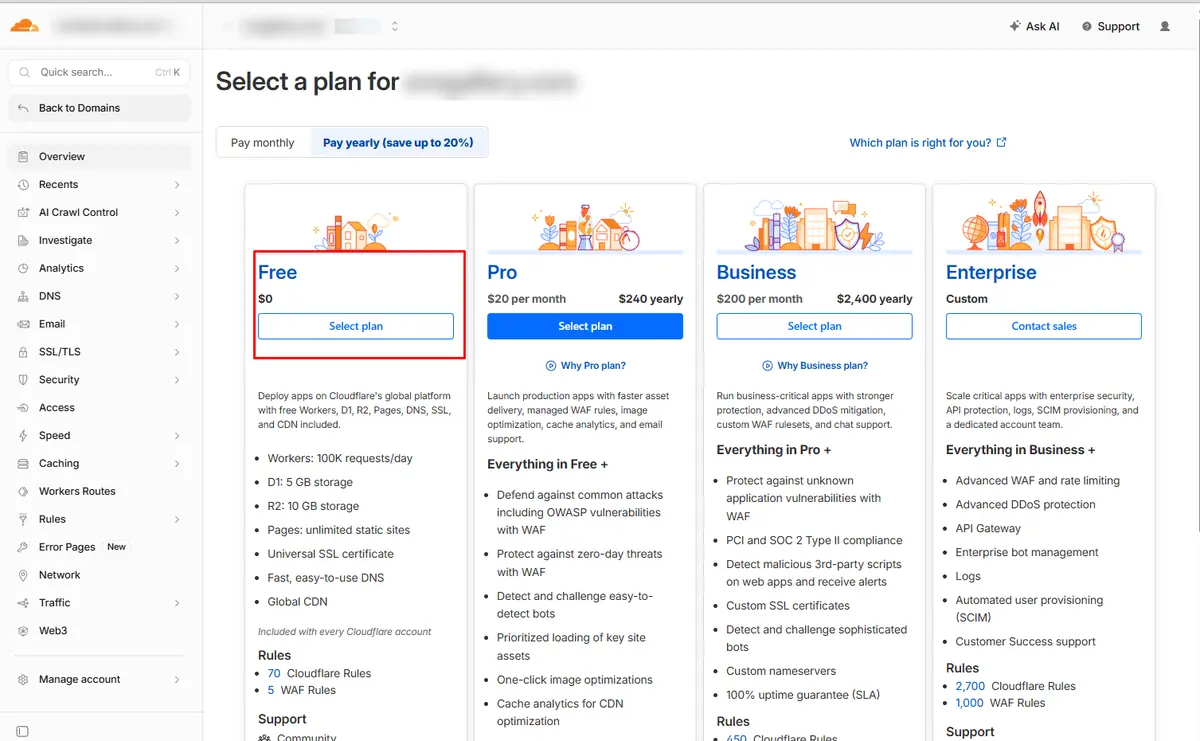
STEP 3Select the Free plan
Cloudflare asks you to pick a plan. Choose Free ($0). It already includes DNS, Universal SSL, the global CDN, Workers, Pages, R2 and D1. You can upgrade later if you ever need to, but most blogs, portfolios and small business sites never do.
STEP 4Review your DNS records, then click "Continue to activation"
Cloudflare scans your current DNS and imports the records it finds. This is the most important check in the whole guide. Compare the list with your current DNS (at Namecheap or your web host) and make sure every record is there:
- A / AAAA / CNAME records for your website (
@andwww) - MX records for email
- TXT records for SPF, DKIM, DMARC and verifications such as Google Search Console
Add anything that is missing with Add record. When everything matches, click Continue to activation.
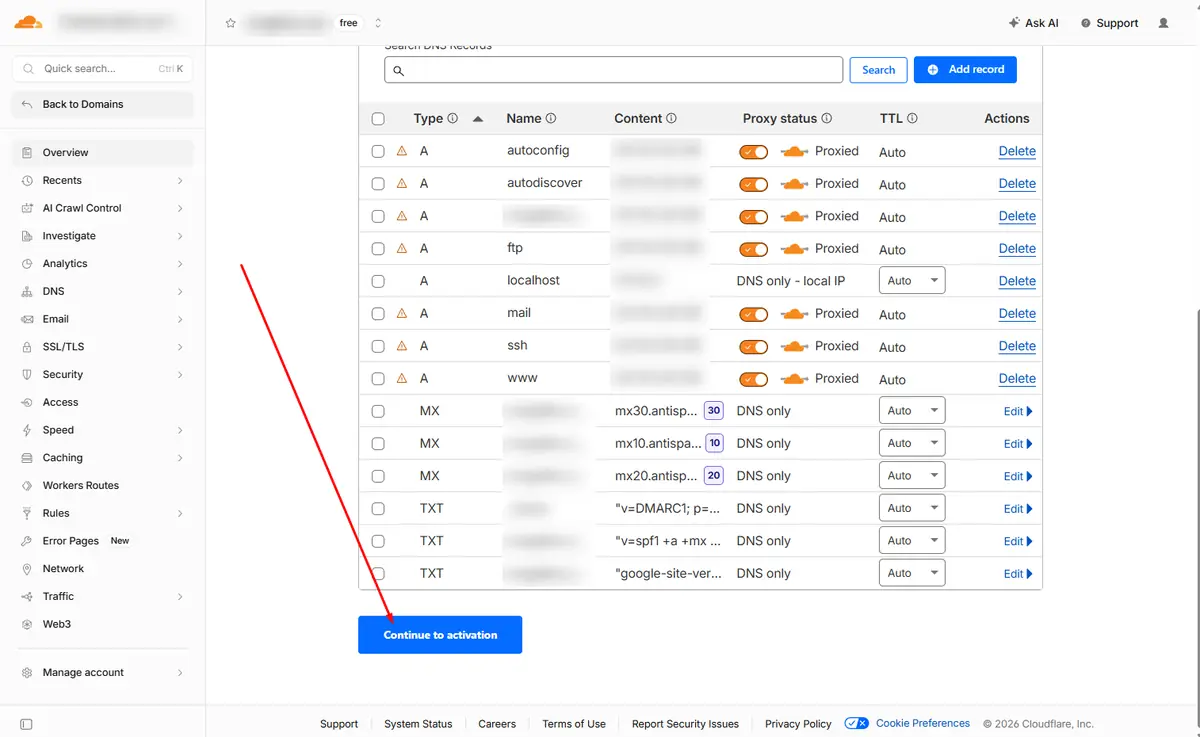
Pro tip: records for mail, ftp, ssh or cPanel subdomains should usually be set to DNS only (grey cloud), not Proxied. Only web traffic (@, www) should go through Cloudflare's orange-cloud proxy.
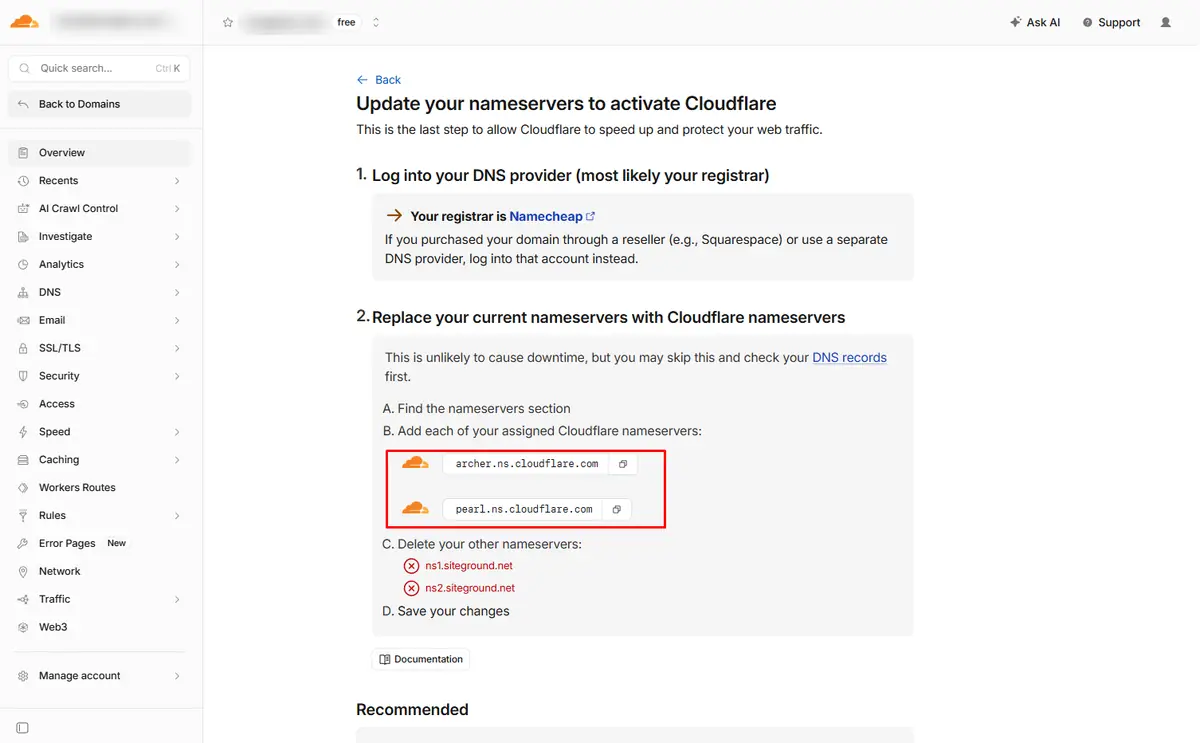
STEP 5Copy your two Cloudflare nameservers
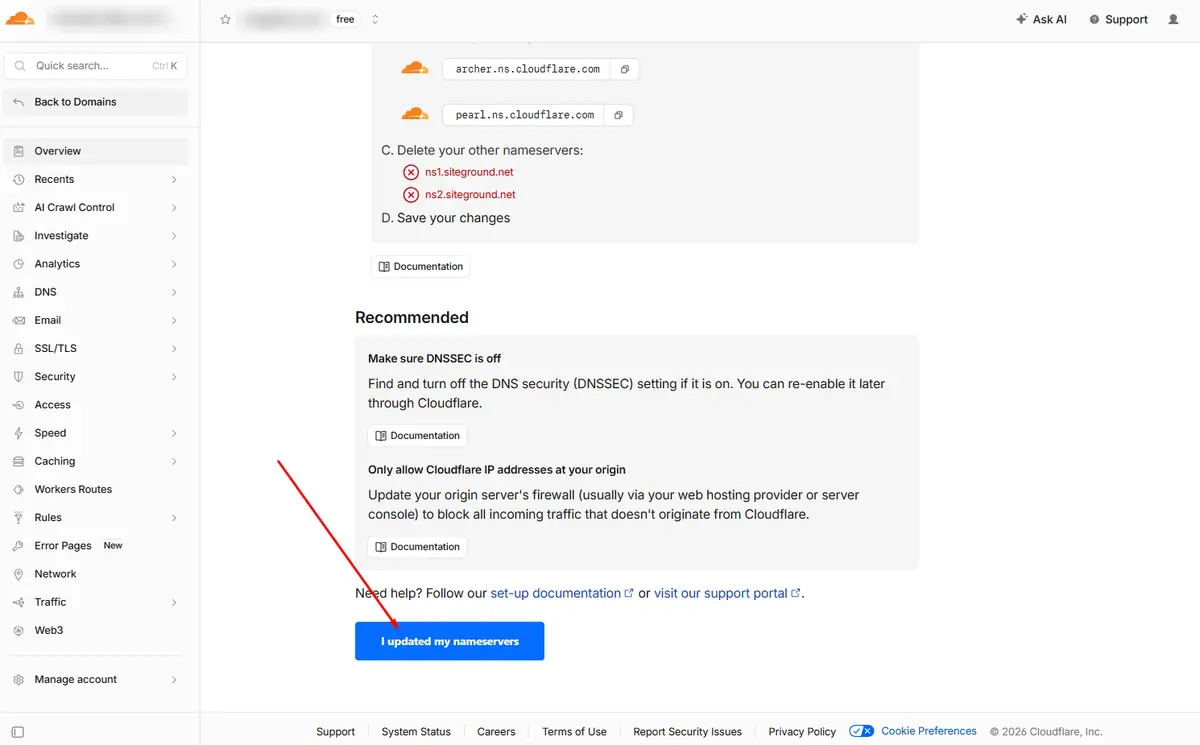
Cloudflare now shows the two nameservers assigned to your account, for example archer.ns.cloudflare.com and pearl.ns.cloudflare.com. Yours may have different names. It also lists the old nameservers to remove. In my case they were SiteGround's (ns1/ns2.siteground.net), because my DNS was hosted there. (If you are still choosing a web host, here is why I recommend SiteGround, not GoDaddy.) Yours might be Namecheap's dns1.registrar-servers.com or your web host's.
Keep this tab open. You will paste these two values into Namecheap next.
Part 2: Point Namecheap nameservers to Cloudflare
STEP 6Set Custom DNS in Namecheap
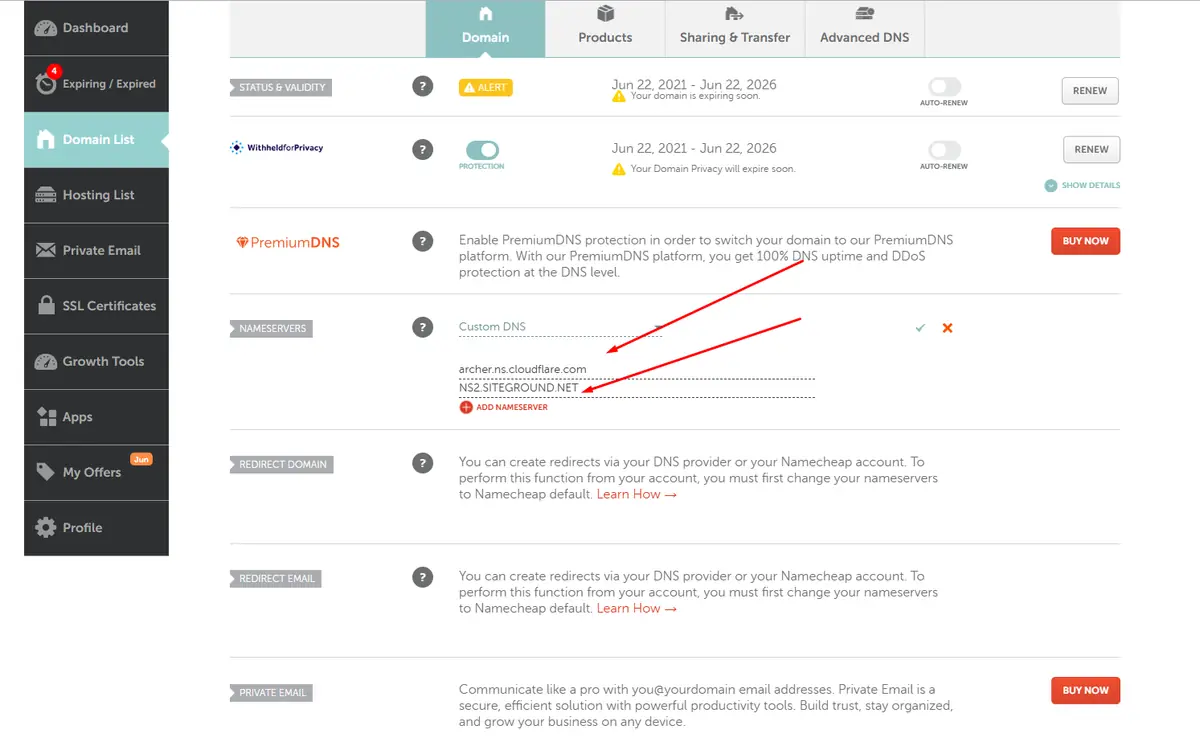
Open a new tab and log in to Namecheap. Go to Domain List → click Manage next to your domain → open the Domain tab. Find the NAMESERVERS row and:
- Choose Custom DNS from the dropdown.
- Replace the first nameserver with your first Cloudflare nameserver.
- Replace the second nameserver with your second Cloudflare nameserver.
- Delete any extra nameservers, so only the two Cloudflare ones remain.
- Click the green checkmark to save.
STEP 7Tell Cloudflare you updated the nameservers
Go back to the Cloudflare tab, scroll down, and click I updated my nameservers. Cloudflare starts checking, and you get an email when the domain becomes Active. This usually takes a few minutes to a couple of hours, and occasionally up to 24 hours.
Your website is now running on Cloudflare's free DNS and CDN, even though Namecheap is still the registrar. The next part moves the registration itself.
Part 3: Unlock the domain and get the auth code (EPP code)
STEP 8Open "Sharing & Transfer" and unlock the domain
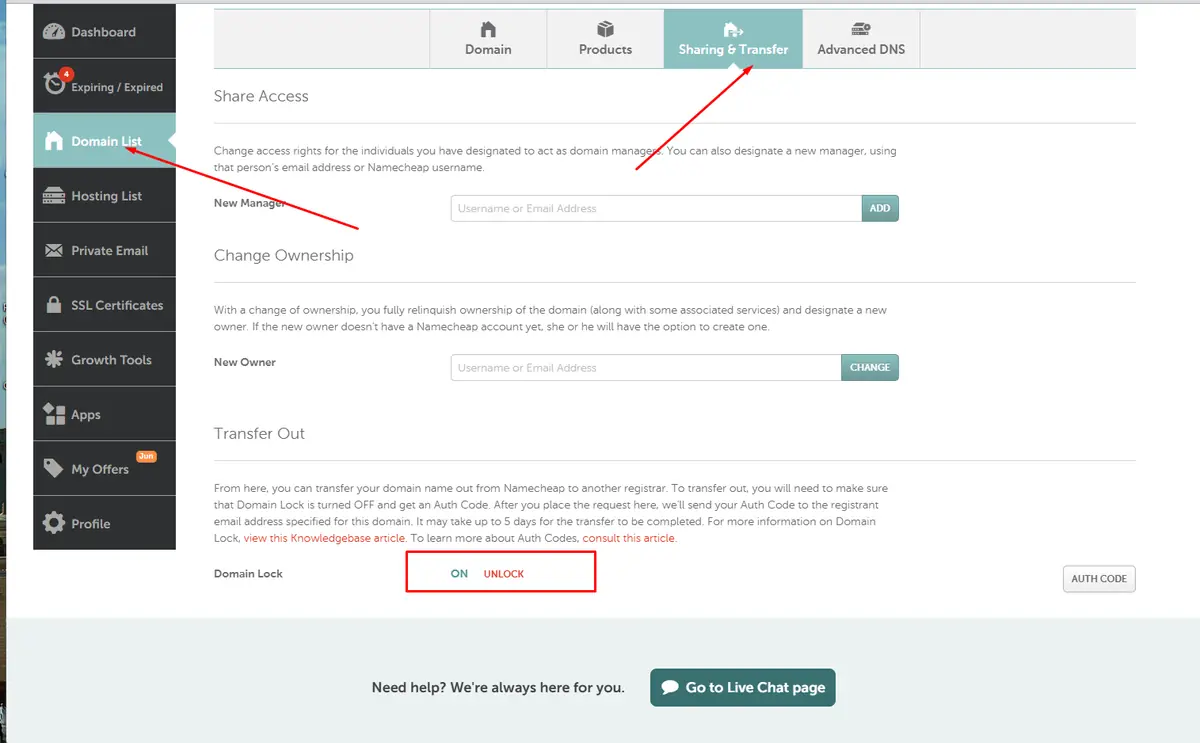
In Namecheap, still on your domain's Manage page, click the Sharing & Transfer tab. Scroll to Transfer Out. Next to Domain Lock, it says ON. Click UNLOCK.
STEP 9Click "Auth Code"
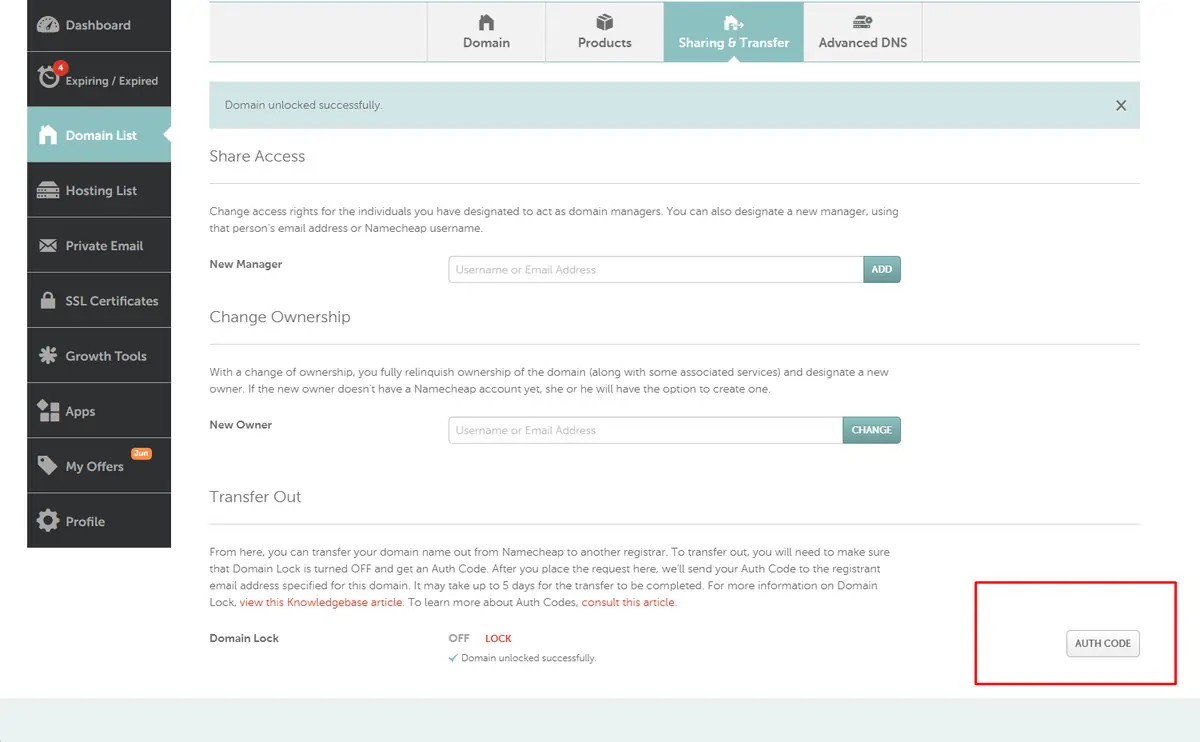
You will see "Domain unlocked successfully" and the lock now shows OFF. Click the AUTH CODE button on the right.
STEP 10Request the code and check your email
Namecheap asks why you are leaving. I picked Pricing and wrote "I want cheaper" in the comment box, because it is true. Then click Send Code.
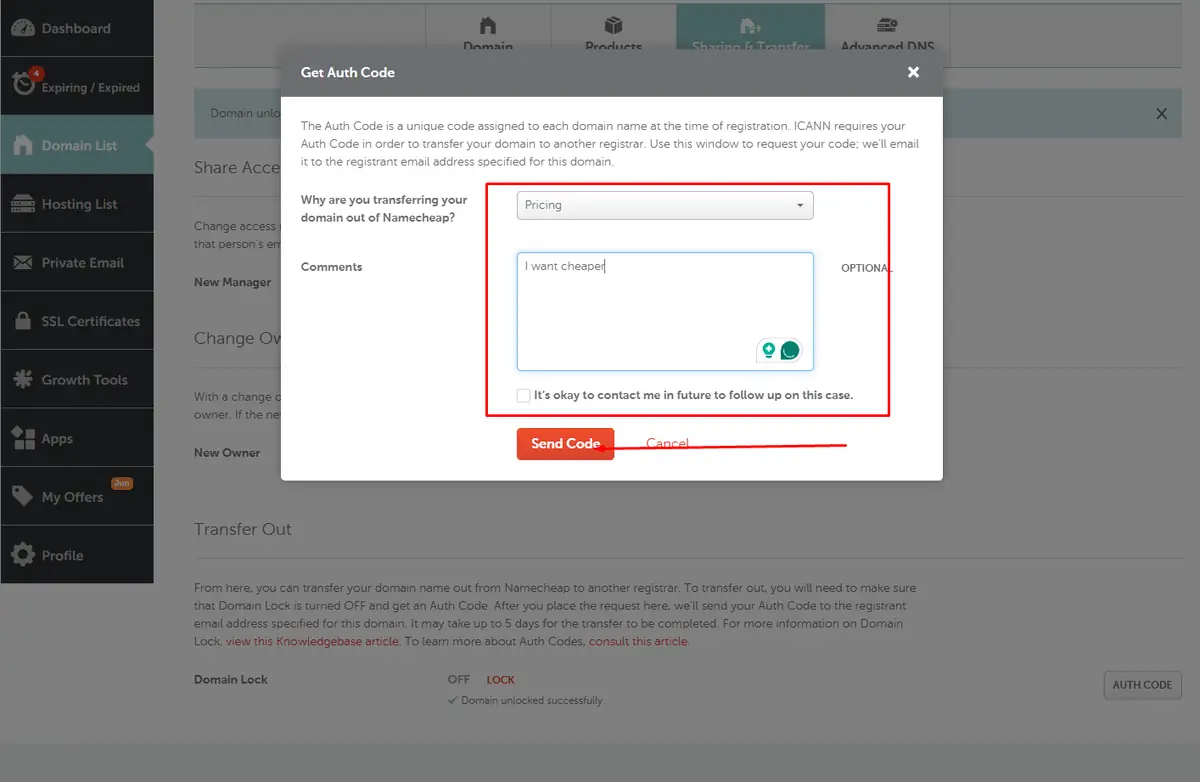
Within a minute, an email titled "Requested Authorization Code for yourdomain.com" arrives at the domain's registrant email address. Copy the code exactly. It often contains symbols like $, % or &, and every character matters.
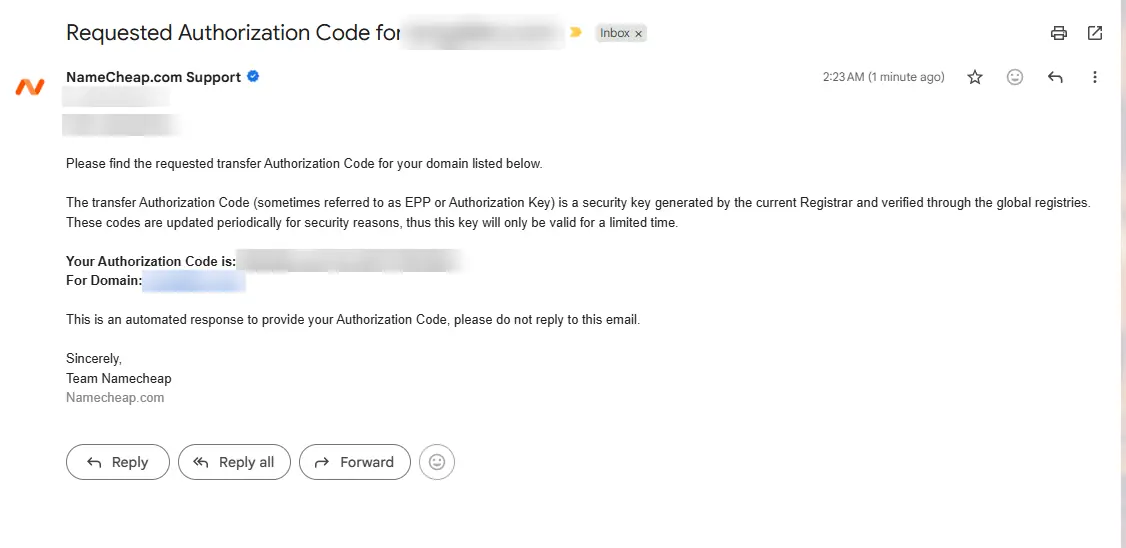
Security: anyone with your auth code and an unlocked domain can try to transfer it. Never share the code publicly, and finish the transfer soon after you request it.
Part 4: Start and pay for the transfer at Cloudflare
STEP 11Go to Domains → Transfers and click "Recheck"
In Cloudflare, open Domains → Transfers in the left sidebar. Cloudflare lists every domain in your account that it can transfer, with the exact price and the renewal price next to each one.
If your domain sits under "Not ready for transfer – Locked at current registrar", Cloudflare checked before you unlocked it. Click Recheck and it moves to Ready for transfer.
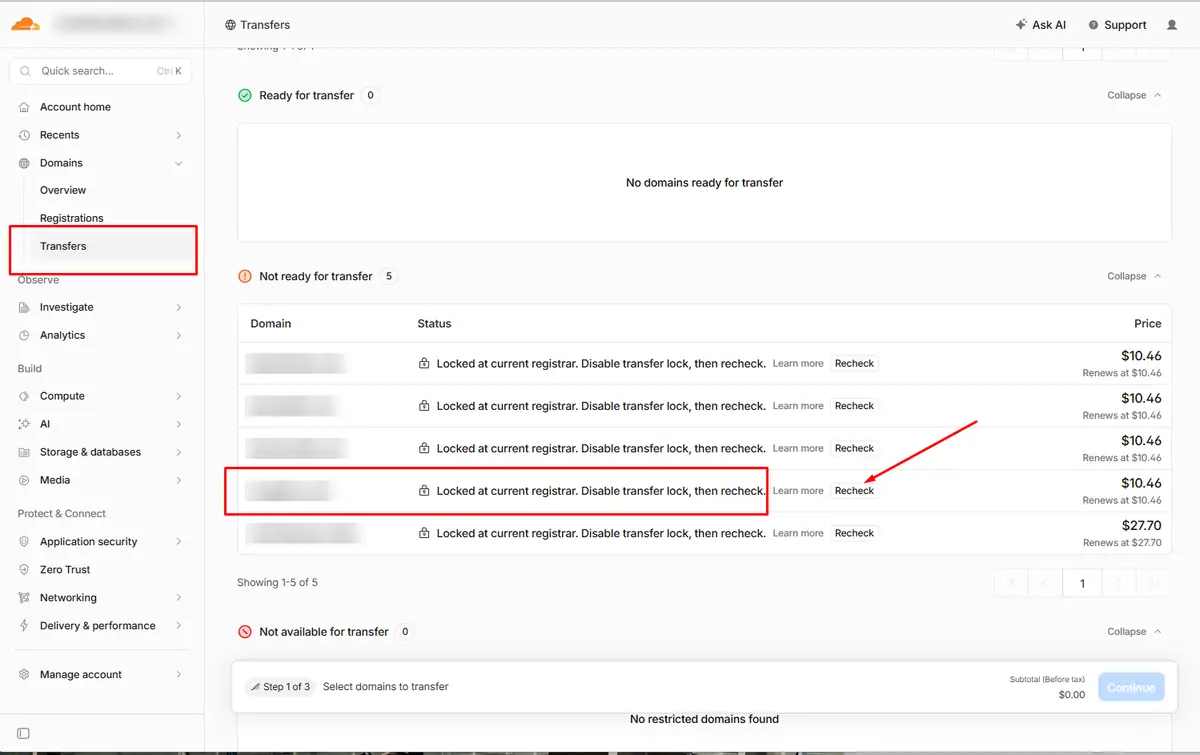
STEP 12Paste the auth code, confirm contact details and pay
Select the domain and click Continue. Cloudflare walks you through three short steps:
- Select domains: tick the domain or domains you are moving. You can do several at once.
- Enter the authorization code: paste the code from the Namecheap email.
- Confirm contact information and payment: check your registrant details (Cloudflare redacts them from public WHOIS for free) and pay with your card.
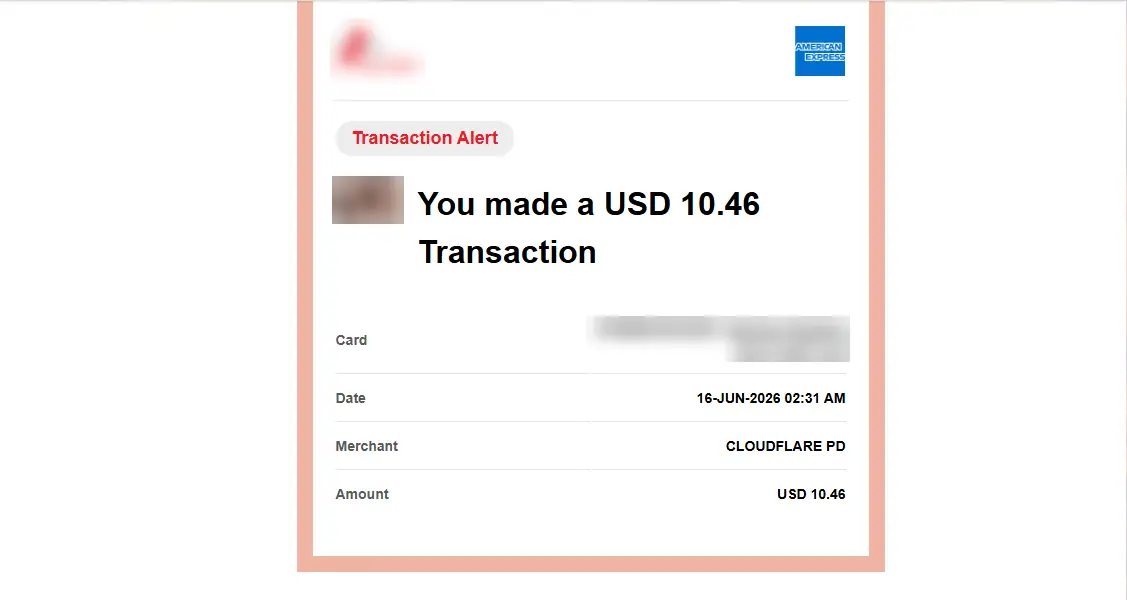
My card was charged exactly USD 10.46, with no hidden fees and no surprise add-ons in the cart.
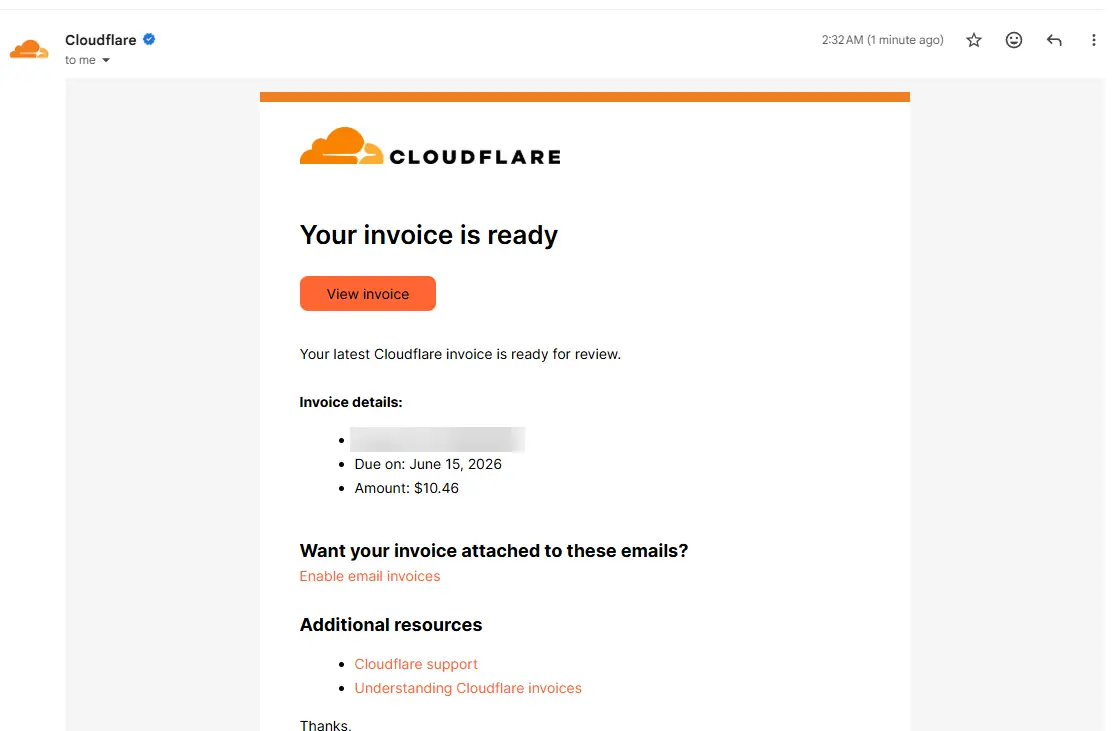
Cloudflare also sends a confirmation invoice by email:
Part 5: Wait for the transfer to complete
STEP 13Watch for the "Domain Transfer Requested" email
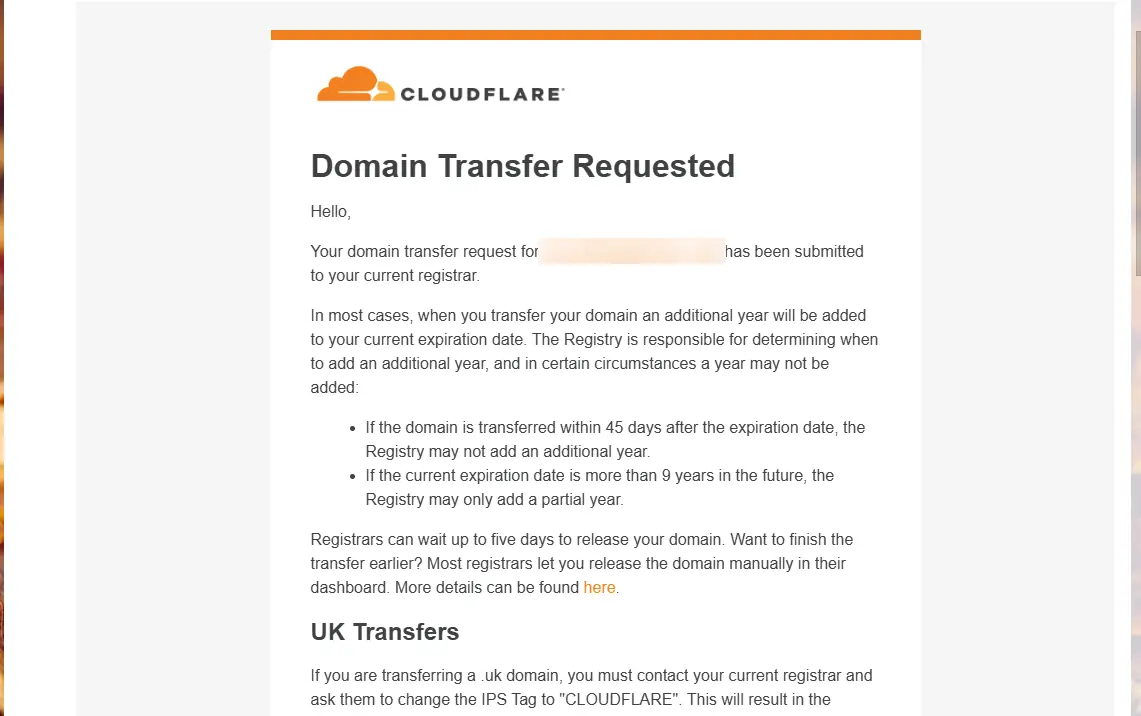
Cloudflare emails you to say the request has been sent to your current registrar. As that email explains, one year is usually added to your current expiry date, so you lose none of the time you already paid for.
STEP 14Check status in Domains → Registrations
Open Domains → Registrations. Your domain shows Pending Transfer. Namecheap has up to 5 days to release it. Namecheap may also email you about the outgoing transfer. Approving it in that email, if it offers the option, can finish the transfer sooner. Otherwise it completes on its own.
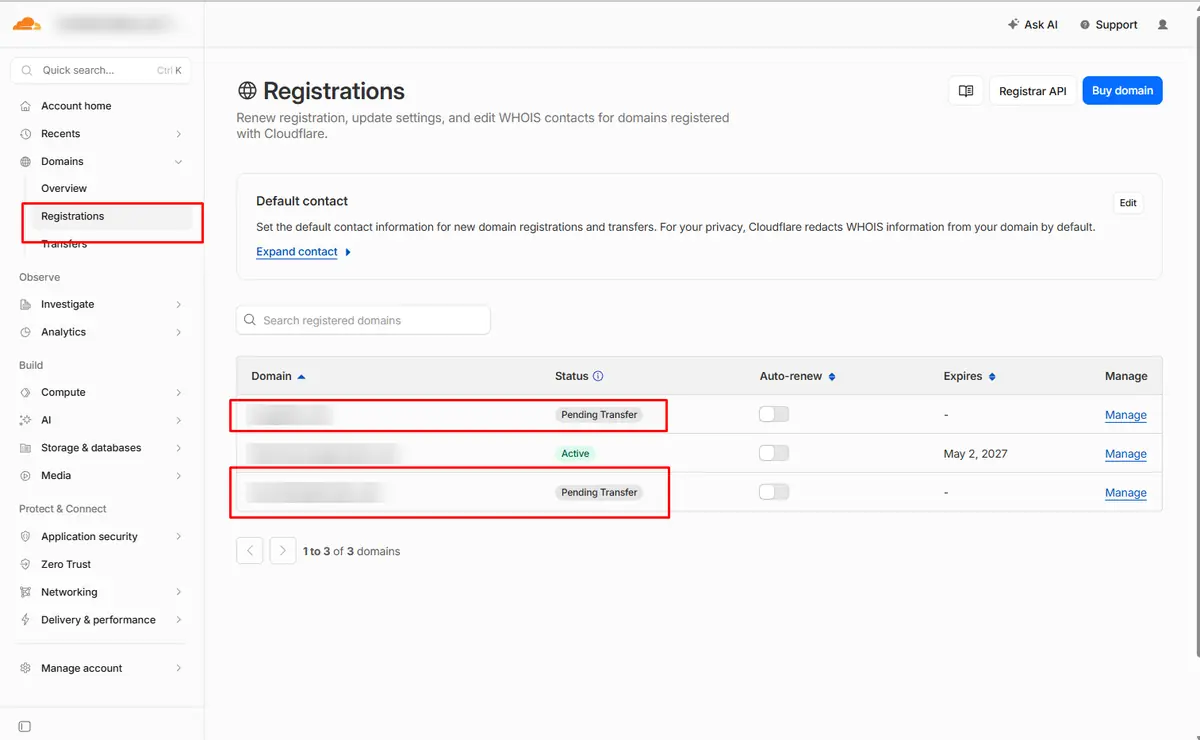
When the status changes to Active, you are done. Turn on Auto-renew on the same page so the domain never expires by accident, and re-enable DNSSEC under DNS → Settings if you used it before.
Honest downsides you should know
I love the switch, but you should know the trade-offs before you move:
- You must use Cloudflare DNS. Cloudflare Registrar requires Cloudflare nameservers. For most people that is an upgrade, but if you need a different DNS provider, this is not for you.
- No first-year promos. Cloudflare does not sell $1 first-year domains. You always pay the honest wholesale price.
- Not every TLD is supported. Check your extension before you start.
- 60-day lock after the transfer. As with any registrar, you cannot transfer the domain again for 60 days.
Troubleshooting common problems
"Locked at current registrar" won't go away
Make sure Domain Lock shows OFF in Namecheap's Sharing & Transfer tab, wait 5 to 10 minutes, then click Recheck in Cloudflare again.
My domain doesn't appear in Cloudflare's Transfers list
The domain must be Active on Cloudflare first, which means the nameserver change in Part 2 has been detected. Check Namecheap's nameservers, then wait until Cloudflare emails you that the site is active.
Cloudflare says the auth code is invalid
Copy the code again with no extra spaces, and include every symbol. If it still fails, request a fresh code from Namecheap. Codes can expire.
My email stopped working after changing nameservers
Your MX records were not copied to Cloudflare, or you relied on Namecheap's email forwarding. Add the correct MX and TXT records in Cloudflare DNS, or set up Cloudflare Email Routing.
"Domain is within 60 days of registration or transfer"
This is an ICANN rule, not a Cloudflare one. Wait until 60 days have passed and try again.
Frequently asked questions
How long does a Namecheap to Cloudflare transfer take?
The nameserver change usually takes a few minutes to a few hours. The registrar transfer can take up to 5 days, because Namecheap (the losing registrar) has up to 5 days to release the domain.
Will my website go down during the transfer?
No, as long as Cloudflare imported all your DNS records correctly before you changed nameservers. The registrar transfer does not touch your DNS records or your hosting.
Do I lose the time left on my domain?
No. The transfer fee includes a one-year extension, which is added on top of your current expiry date.
How much does Cloudflare charge for a .com domain?
Cloudflare charges the wholesale registry price plus the ICANN fee, with zero markup. I paid $10.46 to transfer a .com, and the renewal price is the same.
Can I transfer a domain I just registered?
Not yet. ICANN rules block transfers for 60 days after registration, a previous transfer, or a change of registrant details.
Do I have to use Cloudflare DNS after the transfer?
Yes. Cloudflare Registrar requires Cloudflare nameservers. Cloudflare DNS is free and fast, so for most sites this is a benefit.
Final thoughts: pay the real price, not the renewal-trap price
Namecheap gave me a good first year, and I'm thankful for that. But paying close to $20 a year for every .com, when the same domain costs $10.46 at Cloudflare with free DNS, SSL, CDN and DDoS protection included, made no sense for me anymore.
The whole Namecheap to Cloudflare transfer took me less than 30 minutes of clicking, plus a few days of waiting. If you own even a handful of domains, the savings are worth one evening.
Thank you again, Cloudflare, for keeping domains at honest prices and giving the rest of us powerful free tools. If this guide helped you, share it with a friend who is still paying the renewal-trap price, and send me a message with how much you saved.
Want me to move your domains to Cloudflare or set up Cloudflare for your website? Have a look at my services.