If you run a YouTube channel and a WordPress website, you already know the grind: record a video, upload it to YouTube, then manually create a blog post with the embed, write a summary, set the featured image, and hit publish. Every. Single. Time.
What if your WordPress site could do all of that automatically — the moment a new video goes live on your YouTube channel?
That’s exactly what this plugin does. It’s a YouTube to WordPress auto blog publisher that monitors your channel, fetches the actual video transcript, generates an AI-powered summary using ChatGPT, and auto-publishes a fully formatted blog post — complete with the WordPress YouTube embed, featured image, and SEO-friendly content. No copy-pasting, no manual work, no missed uploads.
I built this plugin because I needed it for a client’s website — a YouTube channel publishing multiple videos per week. Manually creating blog posts was eating hours of time. Now the entire workflow runs on autopilot, and I’m releasing this tool so other creators and agencies can use it too.
The Name Story — What WordPress Wouldn’t Let Me Call It
Let me be upfront about something: if I could have named this plugin what it actually is, it would be called “YouTube Video To WordPress Auto Blog Publisher” or “YouTube To WordPress Auto AI Blog Post Plugin”. That’s what it does. That’s what you’d search for. That’s what it should be called.
But WordPress.org has strict naming policies. The word “WordPress” (and even the abbreviation “WP”) is trademarked and cannot appear in any plugin name or slug. The word “Plugin” is also restricted. So every name I tried got rejected by the automated Plugin Check tool.
Here’s the journey I went through trying to get the name right:
First, I called it “YTtoWP Auto Blog Publisher” — rejected because “WP” is a restricted trademark term. Then I renamed it to “Video To Blog Post Plugin” — rejected again because “Plugin” is also restricted. After multiple rounds with the WordPress Plugin Check tool, the name that finally passed all checks with zero errors was “Video To AI Blog Post”.
It wasn’t just the name either. WordPress.org requires that every PHP class, every function prefix, every database option key, every CSS class, and every cron hook starts with a prefix derived from your plugin slug. The class name alone went through three iterations — YT_Auto_Blog to Vtab_Plugin to Video_To_Ai_Blog_Post_Main to finally Vtaibp_Main — before the checker accepted it. The entire codebase had to be renamed from the original ytab_ prefix to vtaibp_ to match.
So while the official name in the WordPress directory is Video To AI Blog Post, what you’re really getting is a YouTube to WordPress auto blog publisher — a full YouTube video to auto WordPress blog post pipeline with AI-generated summaries from real transcripts. Don’t let the name fool you.
Why You Need to Auto Post YouTube Videos to WordPress
Every YouTube video you publish is a piece of content that deserves to live on your own website. Here’s why turning your videos into blog posts matters:
SEO benefits are massive. Google indexes text, not video audio. A blog post with a real transcript-based summary gives search engines hundreds of words of keyword-rich content to crawl. That means your website ranks for the same topics your videos cover — doubling your organic reach across both Google and YouTube.
You own the traffic. YouTube can change its algorithm tomorrow. Your WordPress site is yours. Every blog post brings visitors to your domain, builds your email list, and strengthens your brand outside of any single platform.
Your audience gets options. Some people prefer reading. Some are at work and can’t watch a video. Some want to skim before deciding whether to watch. A blog post with a WordPress YouTube embed serves every type of visitor.
It compounds over time. A channel with 200 videos could have 200 blog posts, each one a doorway from Google to your site. More indexed pages mean more traffic opportunities.
The challenge has always been the manual effort required. Writing a unique summary for every video, embedding the player, setting the thumbnail, choosing the category — it adds up fast. That’s the problem this WordPress YouTube channel plugin was built to solve.
How the Plugin Works — YouTube to WordPress in Four Steps
The plugin connects three services — YouTube, Google Cloud, and OpenAI — into a seamless automation pipeline that turns every new video into a blog post.
Step 1: Video Detection via RSS. The plugin monitors your YouTube channel’s public RSS feed on a schedule you choose (every 5, 15, or 30 minutes, or hourly). The RSS feed requires no API key and no authentication — it’s a free, lightweight way to detect new uploads the moment they go live.
Step 2: Transcript Fetching via YouTube API. When a new video is detected, the plugin uses the YouTube Data API v3 with OAuth 2.0 to download the actual video captions. This is the real transcript — not a generic description, not a guess. The plugin picks the best available caption track with a smart priority system: manual English captions first, then auto-generated English, then manual captions in other languages, and finally auto-generated in any language.
Step 3: AI Summary Generation. The full transcript is sent to OpenAI’s ChatGPT API (gpt-4o-mini), which generates a well-structured, engaging blog summary based on the actual content discussed in the video. This isn’t generic “this video talks about X” filler — it’s a real summary covering the key points, arguments, data, and opinions mentioned by the speaker.
Step 4: Auto-Publishing. The plugin creates a WordPress post with the exact video title, a responsive WordPress embed video player, the video thumbnail as the featured image (pulled in high resolution), and the AI-generated summary. You control the post template, post status (publish, draft, or pending), category, author, and everything else from a single settings page.
The entire process runs automatically in the background. Upload a video to YouTube, and within minutes a polished blog post appears on your WordPress site.
What Makes This Different from Other WordPress YouTube Plugins
There are plenty of plugins that embed YouTube videos or import video feeds into WordPress. What sets this apart is the transcript-based AI summary.
Most YouTube to WordPress solutions either embed the video with no accompanying text (useless for SEO), or they paste the video description as the post content (often just links and timestamps — also useless for SEO). This plugin downloads the actual spoken words from the video via the YouTube Captions API and uses AI to transform that transcript into a properly structured blog article.
The result is a blog post that reads like a human wrote it, because the AI is working from real content — not guessing from a title. Each summary typically runs 4 to 6 paragraphs with subheadings, covering the specific topics discussed in the video. It’s genuinely useful content for both readers and search engines.
Other differentiators include a three-layer transcript fallback system (Captions API, then page scraping, then video description), full OAuth 2.0 integration with automatic token refresh, a customizable post template with placeholders, a customizable AI prompt, and a built-in step-by-step setup guide designed for non-technical users.
WordPress Plugin Check Verified — Zero Errors
Before releasing this plugin, I ran it through the official WordPress Plugin Check tool — the same tool WordPress.org uses to validate plugins for their directory. The result: zero errors, zero warnings across all categories including General, Plugin Repo, Security, Performance, and Accessibility.
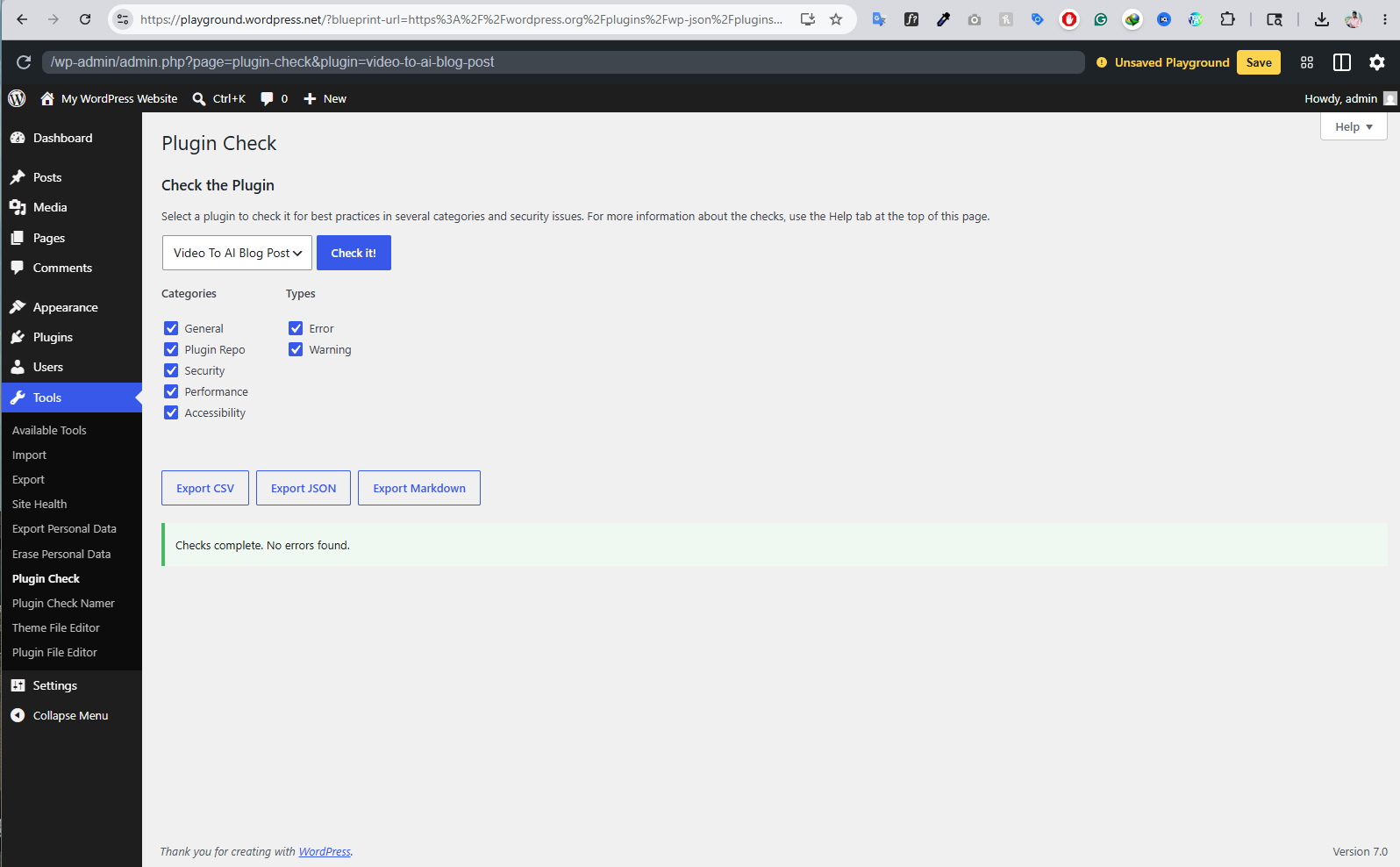
This means the plugin follows all WordPress coding standards: proper output escaping, nonce verification on every form and action, full internationalization, correctly prefixed globals, no deprecated functions, sanitized database queries, and complete security compliance. You’re getting production-grade, WordPress.org-standard code.
Setting Up the Plugin — Complete Walkthrough
The setup takes about 10 to 15 minutes, mostly spent creating a free Google Cloud project. After that, everything runs on autopilot forever. Here’s the full walkthrough.
1. Install and Activate
Download the plugin from WordPress.org or grab it directly from the Google Drive download folder. Upload the ZIP file via Plugins → Add New → Upload Plugin in your WordPress admin, then activate it. You’ll find the settings page under Settings → Video to Blog.
2. Find Your YouTube Channel ID
Go to your YouTube channel page. Your Channel ID is in the URL — it starts with “UC” and is 24 characters long. Paste this into the Channel ID field in the plugin settings.
3. Create a Google Cloud Project
Go to console.cloud.google.com and sign in with the Google account that owns your YouTube channel. Click the project dropdown at the top, click “New Project”, name it anything (like “YT Auto Blog”), and click Create.
Make sure your new project is selected, then go to APIs & Services → Library. Search for “YouTube Data API v3”, click it, and click “Enable”.
4. Create an API Key
Go to APIs & Services → Credentials. Click “+ CREATE CREDENTIALS” → “API Key”. Copy the key and paste it into the API Key field in the plugin settings.
5. Set Up OAuth 2.0 (Required for Transcripts)
Still in the Google Cloud Console, go to APIs & Services → OAuth consent screen. Choose “External” and click Create. Fill in the app name and your email address, then click Save and Continue through the Scopes page.
Critical step that most people miss: On the Test Users page, click “+ ADD USERS” and enter the Gmail address of the Google account that owns your YouTube channel. Without this step, you’ll get an “Access blocked” error when trying to connect. This is Google’s requirement for apps in “Testing” mode — and keeping it in Testing mode is perfectly fine, you do not need to publish or verify the app.
Now go to APIs & Services → Credentials, click “+ CREATE CREDENTIALS” → “OAuth client ID”. Choose “Web application” as the type. Under “Authorized redirect URIs”, add the exact URL shown in the plugin settings page. Click Create and copy the Client ID and Client Secret into the plugin settings.
6. Connect YouTube
Save your settings, then click the “Connect YouTube” button. You’ll be redirected to Google to authorize the connection. The plugin only requests permission to read video captions — it cannot upload, delete, or modify anything on your channel. You can revoke access anytime from your Google Account permissions page.
7. Add Your OpenAI API Key
Go to platform.openai.com/api-keys, sign in or create an account, and click “+ Create new secret key”. Copy the key (starts with sk-) and paste it into the ChatGPT Key field. OpenAI charges approximately $0.01 to $0.03 per blog summary — very affordable for the quality of AI-generated content you get back.
8. Choose Your Publishing Mode and Go Live
Pick your publishing mode: “New Only” (safest — only processes videos uploaded after activation), “From Date” (processes all videos from a specific date onwards), or “All Videos” (processes everything in the RSS feed). Check the “Enable Auto-Publishing” box, save settings, and you’re live. Click “Check Now” to trigger an immediate scan, or wait for the next scheduled check.
Customizing Your Auto-Generated Blog Posts
The plugin gives you full control over how your auto-generated posts look. The post template uses simple placeholders that you can arrange however you want:
{summary} inserts the AI-generated summary. {video_embed} inserts the responsive WordPress YouTube embed player. {description} inserts the cleaned-up video description with clickable links. {title} inserts the video title. {video_url} and {channel_url} link to the video and your channel. {published_date} shows when the video was published. {transcript} inserts the full raw transcript if you want it.
You can also fully customize the AI prompt that generates summaries. The default prompt tells ChatGPT to write a well-structured 4 to 6 paragraph blog summary with subheadings, but you can adjust the tone, length, format, and style to match your brand. Want bullet points instead of paragraphs? Want a more casual or more formal tone? Just edit the prompt — the plugin sends it exactly as written.
Real-World Results — One Month of Automated Publishing
I’ve been running this plugin on a client’s website for over a month with zero issues. The YouTube channel publishes multiple videos per week, and each video now automatically becomes a blog post within minutes of going live.
The AI summaries are genuinely useful — they cover the specific topics, data points, market analysis, and opinions discussed in each video. Visitors who land on the blog from Google search get a solid overview of the topic and can choose to watch the full video embedded right in the post.
The automated workflow has eliminated hours of manual content creation per week while simultaneously growing the site’s SEO footprint. Every new blog post is another indexed page competing for relevant search terms — and it all happens without anyone lifting a finger.
API YouTube WordPress Integration — How It Works Under the Hood
For the technically curious, here’s how the API YouTube WordPress integration works under the hood. The plugin connects three external services, each with a specific role.
The YouTube RSS feed is used purely for video detection. It’s public, free, requires no authentication, and returns the latest 15 videos from any channel. The plugin parses this feed on your chosen schedule to find new uploads.
The YouTube Data API v3 handles transcript fetching via OAuth 2.0. The plugin manages the entire OAuth token lifecycle automatically — refreshing expired access tokens using the stored refresh token so you never have to re-authenticate after the initial one-time setup. Caption tracks are selected using a priority algorithm: manual English first, auto-generated English second, then other languages as fallback.
The OpenAI API powers the AI summary generation. The plugin sends the transcript (truncated to approximately 12,000 words for token safety) to GPT-4o-mini with your custom prompt, and receives back formatted HTML content ready for WordPress. If no OpenAI key is provided, the plugin falls back to extracting the first few sentences of the transcript as a basic summary.
All API calls are made directly from your WordPress server to the respective services. No data passes through any intermediary or the plugin author’s servers. Your API keys and OAuth tokens are stored in your own WordPress database and never leave your site. Each client installation uses its own Google Cloud credentials, making this plugin suitable for agencies managing multiple sites.
Download and Get Started
Ready to turn your YouTube channel into an automated blog? Stop manually creating blog posts for every video. Let the YouTube to WordPress auto blog publisher handle it.
Download Video To AI Blog Post Plugin from Google Drive
For more details, documentation, and updates, visit the official plugin page.
If you have questions, run into issues during setup, or want custom modifications for your specific use case, feel free to reach out through my website at abdullahtofa.com. I build WordPress plugins and automation tools for clients, and I’m happy to help you get the most out of this plugin.
Buy Me a Coffee
This plugin is free and always will be. If it saves you time and you’d like to show some appreciation, you can buy me a coffee. It helps keep development going and motivates me to keep improving the plugin and building more tools like this.
Thank you for using Video To AI Blog Post!